8 min to read
Git and Github: The powerful tools for developers
Sometimes when you write code, there are many times you want to, or need to revert the changes to the last state. Simply, all you need to do is to use the undo/redo feature of the text editor you are using. However, the editor doesn’t save history or you may have mistakenly pressed another key instead of pressing undo/redo and because of that the saved state’s history will be overwritten. By now, you can’t just redo it anymore.
In addition, when you work as a team, team members need to find a way to share the code to ensure that everyone stays up to date with the newest version of the code. Before, people share the changes source code through patch files and send it to other people via emails. Upon receiving it, the team members will need to apply it to their current code base.
Here is an example of how patch file looks like:

The patch file contains 2 formats, before the changes and after the changes. When you have many patches, you will need to know the order of the patches in case you want to rebuild the exact version of the source code at any point. Also when lots of people work on the same file, conflicts might occur. For example, the changes have been deleted from one branch but edited from another branch. The process sounds a lot complicated, doesn’t it?
To resolve theses issues, we need a Version control system. In this post, we will look at Git, one of the most popular version control system.
What is Git?
Git is a distributed version control system created by Linus Torvalds for the development of Linux Kernel. Beside Git, there are also Subversion, Mercurial. To gain a deep understanding of Git, let’s look at what makes Git so powerful.
The version control system
Git helps developers by saving the changes of the projects through commit. Each commit tells us there are changes in the code, similar to patch file. At each commit, we have a version of a project. Which means by saving changes in a separate system, we can rollback to any version of the project at the time the commit was made. In addition, Git also supports teamwork through distribution.
Distributed
When working on a project that is controlled by Git, each team member will have a copy of the Git repository(repo) on their local machine. The repo contains all the information to control the project. Instead of using patch file, you can just create commit and push them to remote repository.
Other programmers can synchronize the repo on a local machine with the remote repo to see these commits or push the current version to the remote repo.
How do you use Git?
To start using Git, you will need to create a git repository on your local machine by using git init command. Basically, it will create .git directory with other files. Once created, Git will watch the changes and control the repo. In case the project already used Git and has a remote repo, you can create a copy of the repo through git clone command.
After setting up the environment, you can start working with Git. The local repository is the copy of Git repo on your local machine. synchronized with other local repos via a remote repo. Also on your local machine, you have two more environments: the working directory and the staging area.
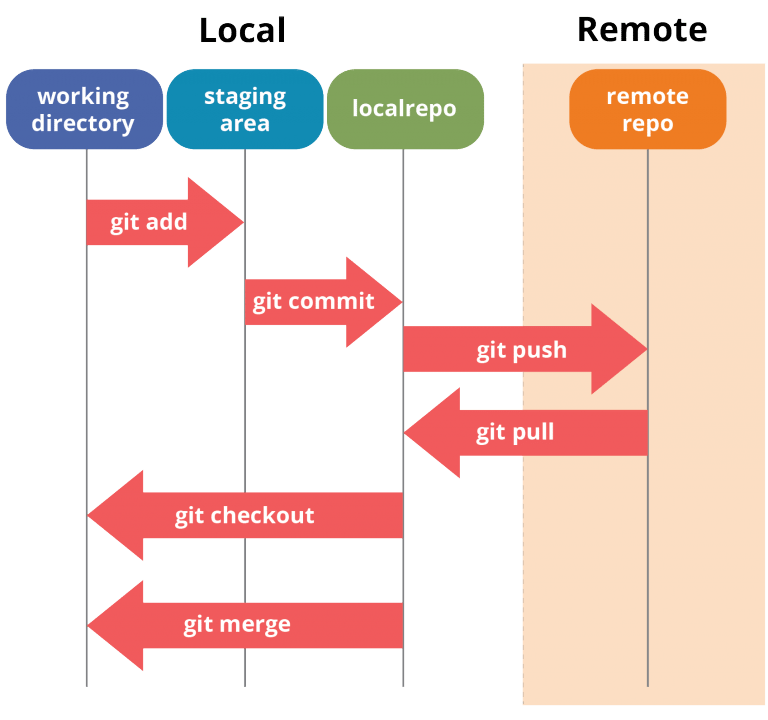
Every changes such as add / edit/ delete will need to be performed on the working directory. When you want to save these changes, simply use git add command to add them from working directory to a staging area. Then use git commit command to save from the staging area to the local repository.
The staging area is where you prepare changes before they are committed. The staging area is incredibly helpful. It let you review the changes, review complex commits. For example, you want to make the changes in a.js, b.js, c.js. To add all changes to staging area you can use git add . command. However, the changes in b.js file may not relevant to the other two files. So you will need to seprate them into several commits. To do that, first add file a and c to the staging area.
$ git add a.js
$ git add c.js
$ git commit -m "Updated a and c"
Then add b.js to the staging area and commit the changes.
$ git add b.js
$ git commit -m "Updated b "
However, these changes only exist in the local repository. In other words, other programmers cannot see it. You will need to push these changes to the remote repository using git push command. Similarly, you can use git pull to pull new changes from the remote repository.
Another important point when working with other people is to use branch. All git repo have a default branch which is master, it is where all the commits are saved at the beginning. This feature enables the team members to independently work on their own branch. Because when everyone has their own branch, changes made to the remote repository will not cause conflicts. We can check other branch by using git branch and use git checkout to create a new branch.

Once you’ve created a new branch, you can begin to commit changes to this branch. When you finish your work on your own branch, you can start combining your branch with other people branch through merging process using git merge`` command. Changes after being merged will be pulled back by team members to their local repository. Usually merge commit might look something like this Merge branch ‘release / v2.1.0’ into develop or Merge branch ‘release / v2.1.0’
Use Git in a proper way
What is the proper way to use git? Or how to use git effectively. This can helps speed up the development process when working as a team.
- Use branch. Branching can help team members work independently. Beside, you can make sure that code in
masterbranch always stable and ready to be used in production. - Write a clear commit message. Each commit has a message, it is where you need to summarize the changes you made into this commit. Commit messages can help other people to understand the changes when looking at git log. To see how can write a good commit message, see here

Each commit should responsible for only one thing (follow SOLID principles) and should only save small changes that are directly related to each other. Instead of making a commit with lots of changes (hundreds lines of code where dozens of files have been changed), you should split it into several small commits. This makes it easier to observe changes, and it’s easier to go back to previous state.
Avoid commits changes that are not neccessary and should be ignored. For example, let’s say in your project you need to save the configuration for the connection to the database, or some secret keys to encrypt information. These are sensitive information and should never be saved with Git. Because once you push these information to the remote repository, everyone can see it, they can view and access your database. In addition, there are some other components that should not be saved such as node_modules, vendor, etc.
Learn more about Git
To gain a deeper understanding of using Git, you may use these links
- Official git documentation: https://git-scm.com/doc
- Learn how to use git: https://www.edureka.co/blog/git-tutorial
- Git official page: https://git-scm.com
Github
By now you should be able to guess that Git and Github are relevant to each other. As explained above, team members of a project can pull and watch changes in code via a remote repository stored on a separate server. Github is a place that store Git repos.
Additionally, Github is also a place for you to improve your skills. Github is one of the most popular services for hosting open source projects. Other people can contribute to these projects through the use of Git and Github. If you are not able to contribute to the project, you can also learn from other developers by tracking their commits. You can see how other people write code and maybe learn from it.
Github is also a great place to impress other people. You can host your own personal projects, through this, people can have a clearer picture of your ability. Github activity history shows a lot about that programmer, such as the technologies used, the ability to collaborate with other developers, the ability to manage projects, etc.
They can also see if your code following coding conventions, how you write code and how readable it is. Commit messages also play a great role in showing your skills.


Comments